Manual: Interface and display
Orion2 Redone retains the original 640 by 480 game interface while presenting it in a resizable native window. It also retains verified interface improvements from the 1.50 patch.
Windowed and Full-screen Display
The game starts in a resizable window by default. Press Alt+Enter to switch between windowed and full-screen display. There is no separate in-game resolution setting: resizing the window changes how the fixed game image is scaled.
Vertical synchronization is enabled by default. Set interface vsync_enabled = false; if it causes a problem with the display; disabling it may cause visible tearing.
Display Scaling
Set interface scaler in data/orion2re.cfg to choose how the game image is enlarged. Close the game, edit the setting with a text editor, and restart the game. The default is pixelart.
| Choice | Appearance and use |
|---|---|
pixelart |
Keeps hard pixel edges and is the closest match to the original artwork. |
bilinear |
Smooths the whole image. It is fast but makes pixel art softer. |
hq2x, hq3x, hq4x |
Smooth edges at a fixed 2x, 3x, or 4x scale. |
mmpx2, mmpx4 |
Enlarge pixel art while preserving block-like details. |
For example:
interface scaler = mmpx4;
Start with pixelart for sharp original pixels or bilinear for a softer image with low processing cost. Use HQx or MMPX when edge smoothing is preferred. Their numbered suffix is the enlargement factor used before the image is fitted to the window; higher factors generally need more processing and memory.
If animation becomes uneven after selecting a high scale factor, try a lower factor, pixelart, or bilinear. The best choice depends on the window size, display, and available performance.
Animation and Scrolling
Press PageUp or PageDown to change the overall animation speed between -3 and +3.
interface screen_fade_speed controls how quickly screens fade in and out. Its range is 1 through 100 and its default is 25; a higher value completes each fade in fewer steps.
interface scroll_interval controls the delay between tactical-combat edge-scroll steps. The default is 1. Each step adds about 55 milliseconds; 0 removes the delay.
The interface animation block controls the cloak-animation step used at normal and fast game speeds. The defaults are 1 for normal animation and 2 for fast or network animation.
Default Settings
The default settings for a new game are:
New Game menu - Tactical Combat is ON;
Game Settings menu - Ship Initiative is ON;
Tactical Combat Options menu - Legal Moves is ON.
Auto Save
In Singleplayer, the game autosaves each turn before combat instead of every four turns, the same way it does for Multiplayer.
SoundFX
Cutscenes Sound
Sound for cutscenes is on if either Music or Sound Fx is turned on. The game uses the enabled channel's volume setting.
GUI Improvements
Faster Screen Updates
Screen fade speed is configurable. See Animation and Scrolling.
Main-map Navigation
Use + and - to zoom the galaxy map. The normal screen keys open Colonies (C), Planets (P), Fleets (F), Leaders (L), Races (R), and Info (I). Press G for the game menu and T to end the turn.
Visible wormholes are connected by lines. interface wormhole_link_color changes their palette color; the default is 4. Relocation lines can be shown or hidden with Alt+F8.
Main-screen Tax Rate
Set interface main_screen_tax_rate = true; to show a nonzero tax percentage as a third line above the treasury balance on the Main galaxy screen. The order is tax percentage, BC balance, then income. The percentage is centered and uses the same base font settings and font-height spacing as the technology breakthrough percentage. The setting is disabled by default, and 0% tax retains the classic two-line display. Treasury and income formatting and negative-value colors are unchanged. This setting is local and excluded from saves and multiplayer synchronization.
Influence Overlay
Press Alt+V on the main map to cycle through:
- influence off;
- checkerboard influence fills with borders; and
- influence borders only.
The view represents the travel range known for each contacted empire. It can help compare reachable systems and identify borders, but it does not reveal systems or capabilities you have not discovered. Omniscient players can see every empire's influence.
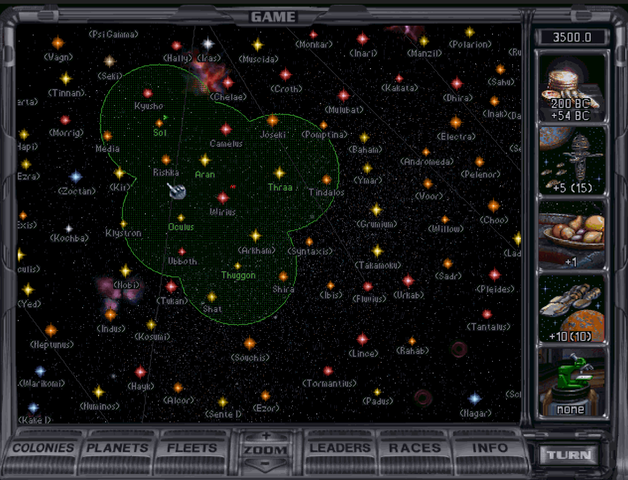
At the farthest zoom level of an extended Maximum galaxy, the map draws automatic outlines to make the view readable even when the optional overlay is off. These outlines are separate from the Alt+V views.
Main-map Overview Star Markers
The optional interface main_map_overview_markers = true; setting replaces star-type pictures with compact markers when an extended Maximum galaxy is zoomed out to its all-stars view. Known owned systems use player colors, unvisited neutral systems use bluish-gray, visited or contested neutral systems use gray, and black holes keep their distinct overview marker. Other galaxy sizes and closer zoom levels retain normal star-type pictures. The setting is disabled by default.
Overview markers identify map objects; they do not show influence.
Title Screen
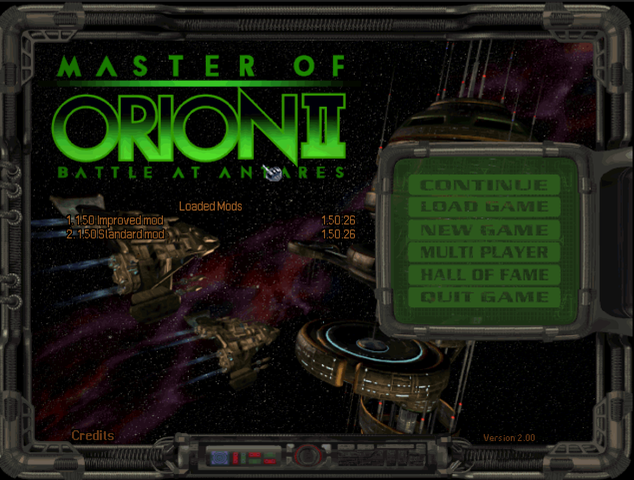
The version number is shown in the lower right corner of the main menu. Set interface main_menu_mod_list = true; to show the enabled mods in load order, including their names and versions. This setting is disabled by default; when enabled, the animated credits move to a separate Credits screen.
New Game Screen
New artwork1 is used on the New Game screen for Random Opponents and Post-warp Civilization.

Warp Beast
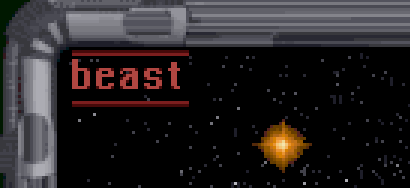
Presence of the Warp Beast is now displayed in the upper left corner of the Main screen.
Tech Breakthrough Turn Counter
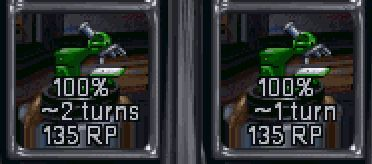
The turn counter is now more precise overall, for example it shows 1 turn instead of 2 when the chance for breakthrough is 100%.
Distance between two stars
Hotkey F9 shows the distance between two selected stars.
Enemy Moves
The option ‘Enemy Moves’ in the Game / Setting menu now actually works: When enabled it displays red destination lines of all enemy fleets within scanning range, including those that are not traveling towards one of the player’s systems.
Colonies Screen
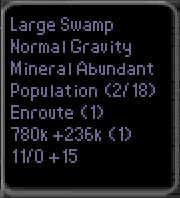
Extra info about population and production is now displayed in the Colony Info Summary window.
The new line Enroute (x), indicates how many settlers are inbound to the colony. Pop growth value (+236k in this example) has been extended with the pop round off value present on the colony (here 780k) and how many population units will be added from growth next turn (here 1). The last line contains production stats in the form of stored production value (including bought production) over total production cost of the item, plus the amount of current production on the colony.
Colony Screen
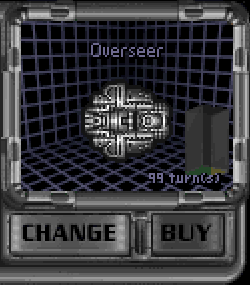
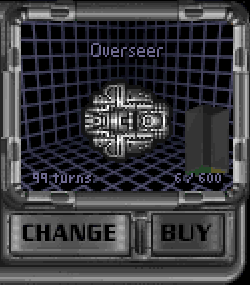
The stored production value (including bought production) and total production cost of the item is now displayed in the status box of the colony's current construction project:
Classic 1.50 patch
Automatics (Design Dock)
In the Ship Design screen, the Automatics are the two boxes that list the ship's essentials - engine, armor, shield and computer. In version 2.00, the beam attack value includes the Battle Scanner bonus if present in the design, in the same way that Augmented Engines, Reinforced Hull, Heavy Armor and Hard Shields are shown. In addition, Augmented Engines are no longer counted twice in the Beam Defense value.
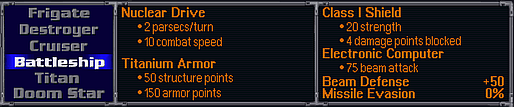
The above screenshot shows stats of a Battleship fully loaded with weapons & specials, including Augmented Engines (5>10 combat speed), Heavy Armor (50>150 armor points), Hard Shields (1>4 damage points blocked) and Battle Scanner (25>75 beam attack). In classic, this example displays just +25 BA and an incorrect +75 BD.
Planets Screen
The Galactic Lore skill caused all planets not yet visited, including ones with monsters, to be tagged as ‘no enemy presence’ in the Planets screen. In result, you could unknowingly send a colony or outpost ship to such worlds without warning, causing the destruction of said ships. The ‘no enemy presence’ filter now only shows planets that have actually been visited.
History Graph Displays Annihilated Empires
Annihilated empires are no longer removed from the History Graph but remain visible.
Next Turn Reports
The order in which you get reports or actions at the beginning of the turn has been changed, providing a more logical sequence:
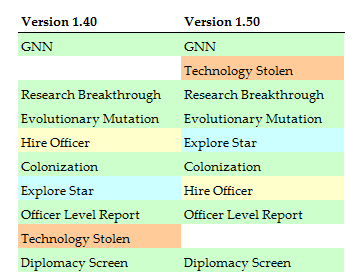
- If you have a tech steal and a tech breakthrough in the same turn, you are now informed by your spy before you are brought to the Technology Select screen.
- Exploration happens before Colonization. When scouting two new systems in the same turn, you see them both before you are given the option to colonize a system.
- The option to Hire an officer now happens after Exploration, preventing the case of not being able to accept a Marooned Hero because you have just hired your 4th leader in that same turn!
Leader Screen Hire Window
In classic, the only time the technology that a leader brings is mentioned is on initial offering if you have sufficient cash to hire the leader. Now, the technology is also shown if you have insufficient money as well as upon clicking Hire in the Leaders screen.
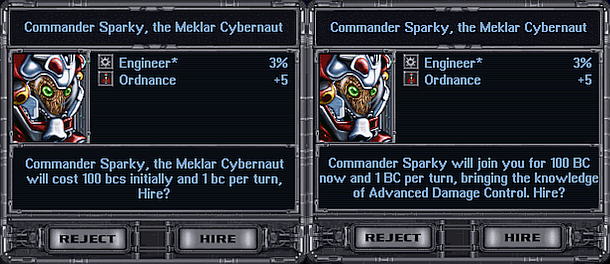
Leader Screen Hire Window2
The second additional window for initial leader offerings shown on Tutor and Easy levels, is now only displayed on the Tutor difficulty level.
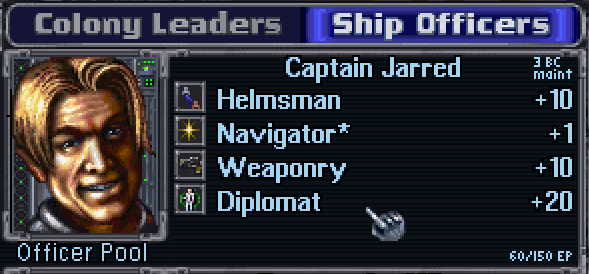
Leader Experience Points
Experience Points for each leader are now shown in the Leaders screen.
Centered Planets
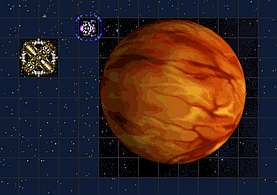
In tactical combat, planets are now drawn centered in the bombing area.
Bug Fixes
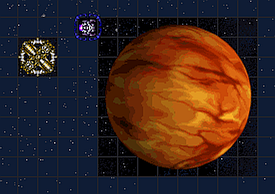
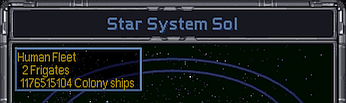
Billions of Colony Ships Bug
Corrected the display of colony ship count for 2 or more ships in the star system pop-up.
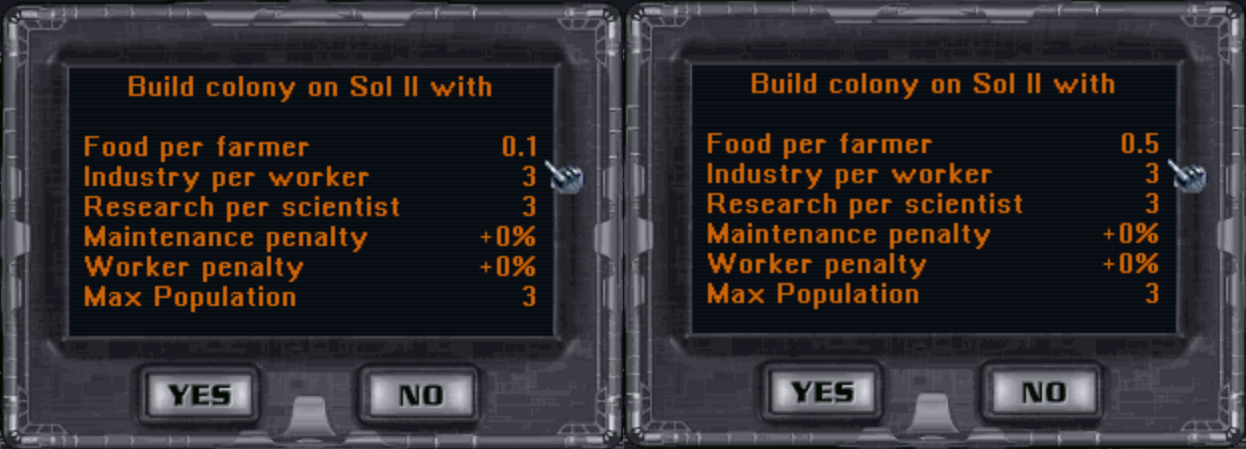
Incorrect Display of Fractional Racial Food Bonus
A .5 food value is displayed correctly now upon left-clicking on a planet in the System overview (the small box in the Colony screen) as well as in the New Colony dialog:
Missing Tolerant Maintenance Penalty
For tolerant races, the correct building maintenance penalty for Toxic, Radiated and Desert planets is now shown in the Build Colony and Colony Info pop-ups (Statistics Boxes).
Colorless Brown Stars on Minimaps
Colonized brown stars are no longer displayed as uninhabited on minimaps.
Planets Screen Gravity Penalty
Low-G planets now show “-25% prod” for a Heavy-G race, instead of “-50% prod”.
Stealth Detection Spoils
Fixed 3 detection giveaways of stealth ships:
- Star System popup: In the fleet summary tooltip.
- Fleets screen: In the summary below the galaxy map.
- Fleets screen: When scrolling in via <> with either filter off, seemingly empty fleets would appear suggesting the presence of filtered ships (normally empty fleets are skipped).
Fleets Screen Scrollbar Position Bug
The scrollbar is now drawn on top instead of centered when switching fleets.
Ship Officers Screen Missing Scroll Bar
A scrollbar for the Fleet Grid in the Ship Officers screen is now displayed.
Navigator Skill Display Bug *
Corrected the displayed speed bonus in the navigator skill text. The ordinary skill gives a +2 speed bonus for level 5 leaders, and the improved (*) skill gives this +2 speed bonus for level 4 leaders.
Artifacts On-click Bonus Bug
Fixed the bug that made it possible to generate additional research points at Artifacts and Orion planets, by clicking on the science production icons and seeing the production breakdown. These additional RPs were real and affected the empire total, despite not being included in the empire total RP count shown on the Main Screen.
Time Space Anomaly
In the Colony and Colonies screen, during the anomaly the depictions of import/export grains & pollution barrels are no longer shown.
AI Ground Troops Bonus Omission
During ground invasion, the AI troops bonus/penalty was listed but not added to the sum. This has been fixed. A similar fix was applied in the Colony View screen (seen for AI’s via ALT-X). Note that this bonus/penalty did already apply to the actual combat resolve.
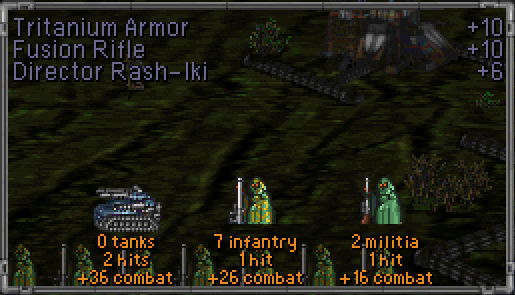
Commando Leader Omission
A colony leader with the Commando skill is now listed in the Ground Invasion screen and in the military statistics pop-up in the Colony screen. In the pop-up, the bonus is also added to the combat bonus total for each ground unit type:
Build Queue Bugs
The following repeat-build and queue-handling problems have been fixed:
- It is no longer possible to swap a repeated bought product by swapping with its repeat. This form of repeat build cheat was partially fixed in the 1.40 fan patch.
- Swapping repeated products will no longer result in a product loss. Example: queue is “spy, repeat, scout, repeat”, selecting spy then clicking scout used to result in only spy being left in the queue. In 1.50 the queue becomes “scout, repeat, spy, repeat”.
- It is no longer possible to get double repeat by moving repeated products around. Example: queue is “scout, repeat, spitfire, repeat, spy, repeat”, selecting scout then clicking spitfire used to result in “scout, spy, repeat, repeat”. In 1.50 scout and spitfire just swap: “spitfire, repeat, scout, repeat, spy, repeat”
- It is no longer possible to swap products under repeat. Example: queue is “autolab, spy, repeat”, then swapping autolab and spy in classic would produce “spy, autolab, repeat”. In 1.50 the queue becomes “spy, repeat, autolab”.
- It is no longer possible to select a top product, buy it using B shortcut and then swap it with another item. Buying removes selections now.
- Canceling repeat+android no longer results in a bare repeat. In previous versions, if you repeat-build androids on a planet that has no more room and then choose “no” when notified that there may be no room, the androids will disappear from the build queue, leaving a bare "Repeat", all by itself. Adding a new product to this bare repeat causes the game to freeze.
Colony Base Button Disappearance
The Colony Base button in the Build screen is only present if there is at least one colonizable planet present in that system, that is not yet covered by a Colony Base building already in the queue. Previously the Colony Base button was not updated in time because of a bug, so sometimes clicking on Colony Base button resulted in adding an item just below it (usually a freighter). Calculation of the amount of colonizable planets was also buggy because it considered outposts belonging to other players colonizable, which could result in scrapping of a built colony base.
Visual Fixups for Ships
In the Ship Info pop-up, the racial missile defense bonus is no longer halved (overmap) and the Trans-Dimensional (TD) bonus is added to the drive speed value (overmap and in combat). Driveless TD ships have their speed stats displayed properly. Unused, but misleadingly displayed values for marines and hit points of internal systems on a Combat Planet, lander ships and strategic ships have been removed. Combat speed for strategic and lander ships and unused defense values for lander ships are now displayed as zero. Also, info for the active ship in combat should now be displayed more properly in the status bar (during retreats etc).
Tactical ship shield strength is shown as the weakest remaining shield arc over its maximum strength. The shield name's parenthetical value continues to show shield-generator subsystem hit points.
Visual Fixup for Strategic Ships
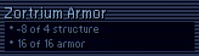
Strategic ships have no separate armor points, only structure points. Both values used to be displayed however, and damage was subtracted from the structure number while armor upgrades were counted in the armor number. Thus, a Zortrium armored frigate that sustained 12 damage, displayed a negative structure value together with healthy armor. Strategic ship hit points are now correctly displayed as the structure number and armor is displayed as 0.
Ship shields in Strategic combat have no shield arc’s strength, and act as planetary shields, only reducing damage by some value. This value is now properly shown instead of arc strength value. BD value of strategic ships display is now more accurate (previously the Tactical BD was shown instead, but note that the new value does not include possible bonuses from defense specials installed on a ship).
Strategic Doom Star Bug
Fixed strategic doom star being designed incorrectly as if it was tactical. Apart from incorrect armament displayed it had incorrect and possibly lower cost. This did not affect combat outcome, because in strategic mode ships are correctly redesigned for every combat.
Star System Pop-up Broken Palette
Fixed the bug that sometimes caused part of the color palette of Star System pop-ups to change to bright green.
Hotseat Mouse Right-Click Block
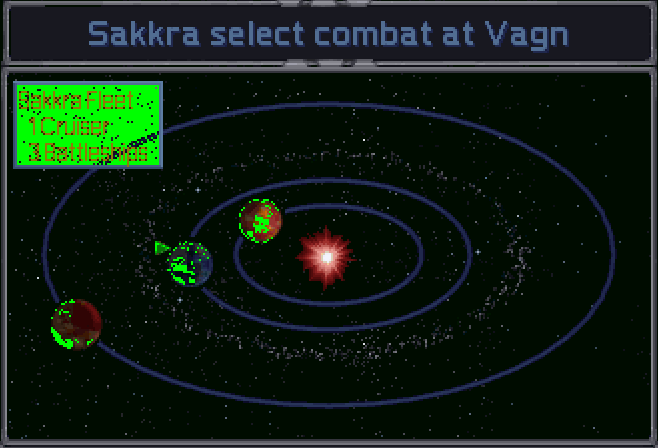
Fixed the right-click mouse button block after loading a pre-battle autosave in Hotseat. Loading such pre-combat autosave caused mouse right clicks to not work properly for some actions, most noticeably for turning ships.
Disabled Weapon Slots Color
Fixed the bug that erroneously led to displaying a turned off weapon slot as yellow instead of red in case the weapons in the slot had no shots left. Note that a reddened weapon (besides Spatial Compressor) does not automatically fire at incoming missiles anymore, except during the ‘Seeking Missiles’ phase at the end of each combat round.
Correct Damage Blocked Displayed for a Planet
Planet shields work in a slightly confusing way in tactical combat. Depending on the presence of defensive buildings on a planet, regular ship class shields can be added or not, while game info misleadingly claims they are always added. This is now fixed, the ordinary shield bonus is no longer displayed when there are no ground defenses.
For example a planet has a Radiation shield, no defensive buildings, and its owner possesses the Class X shield tech. The old display showed 15 damage blocked, while only 5 was actually blocked. Version 2.00 displays 5 damage blocked in this case.
Missing Loknar’s Technologies
The two extra technologies that Loknar brings (added in patch version 1.3), in addition to Death Ray and the three random Xenon techs, are now displayed.
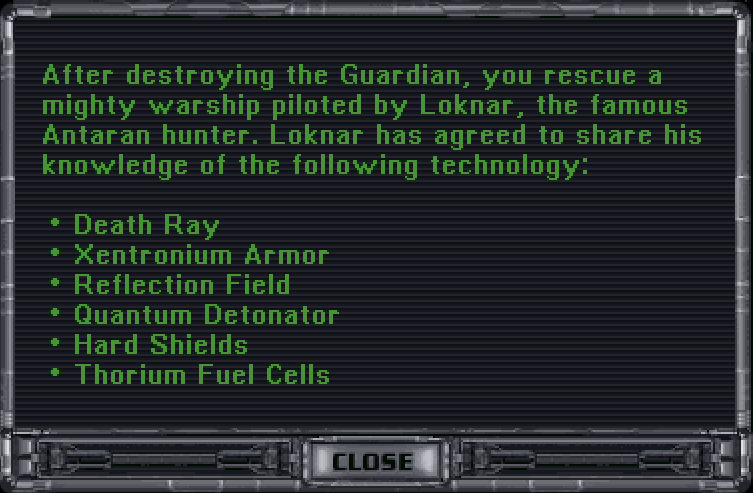
These two techs are chosen randomly from the tech list: First tech from techs 1-101; Second tech from techs 102-203. This could result in a selection of one or both techs already in your possession. In such a case the technology is not listed and you will not receive another tech instead.
Note that this selection is made before the Xenon techs are given and in the rare case where the Death Ray is one of the two techs, you will not receive another Xenon tech instead of the default Death Ray technology.
Evolutionary Mutation Screen Bug *
Fixed a bug that incorrectly prevented spending Mutation picks in some fields, due to incorrect cost calculation in case a negative pick was selected in the preceding field. For example, it did not allow taking +50 Attack when you already had +20 Ship Attack and -20 Ship Defense.
Race Info
- The Race Statistics subscreen under INFO, displays a maximum of 11 racial traits in classic. For races with more traits, the traits exceeding 11 are not displayed. In 1.50 the font automatically scales to accommodate up to 20 traits. A reduced font size is used for 12-13 traits and a minimal size for more than 13 traits.
- +½ and -½ food and money bonuses are now displayed correctly both in the race summary of the Race Selection screen and in the Race Statistics subscreen.
Tech Review
Improved the placement of several sections and technologies in the Tech Review subscreen of the Info screen.

Empire Information Options
interface info_menu_layout selects the Empire Information tab layout. classic, the default, uses the original positions. ice uses an alternate arrangement and requires the matching alternate INFO.LBX supplied by a mod.
interface print_research_value controls the research value shown in Empire Information:
| Choice | Display |
|---|---|
classic |
Research produced during the current turn. This is the default. |
accumulated |
Research accumulated toward the current field, including the current turn. |
remaining |
Research remaining under the extended breakthrough range. |
percentage1 |
Breakthrough chance when positive; otherwise current-turn research. |
percentage2 |
Breakthrough chance when positive; otherwise research remaining before the normal field cost is reached. |
Loaded Configuration and Mod Notices
When a save restores its packaged configuration, the main screen displays Loaded config followed by the required package IDs. This prompt is enabled by default with interface loaded_config_prompt. An unexpected package ID means the save uses a different mod setup and should be checked before continuing.
The optional main-menu mod list described under Title Screen shows the enabled packages before play.
-
In addition, the picture for seven opponents has been redrawn, centering the 7. ↩